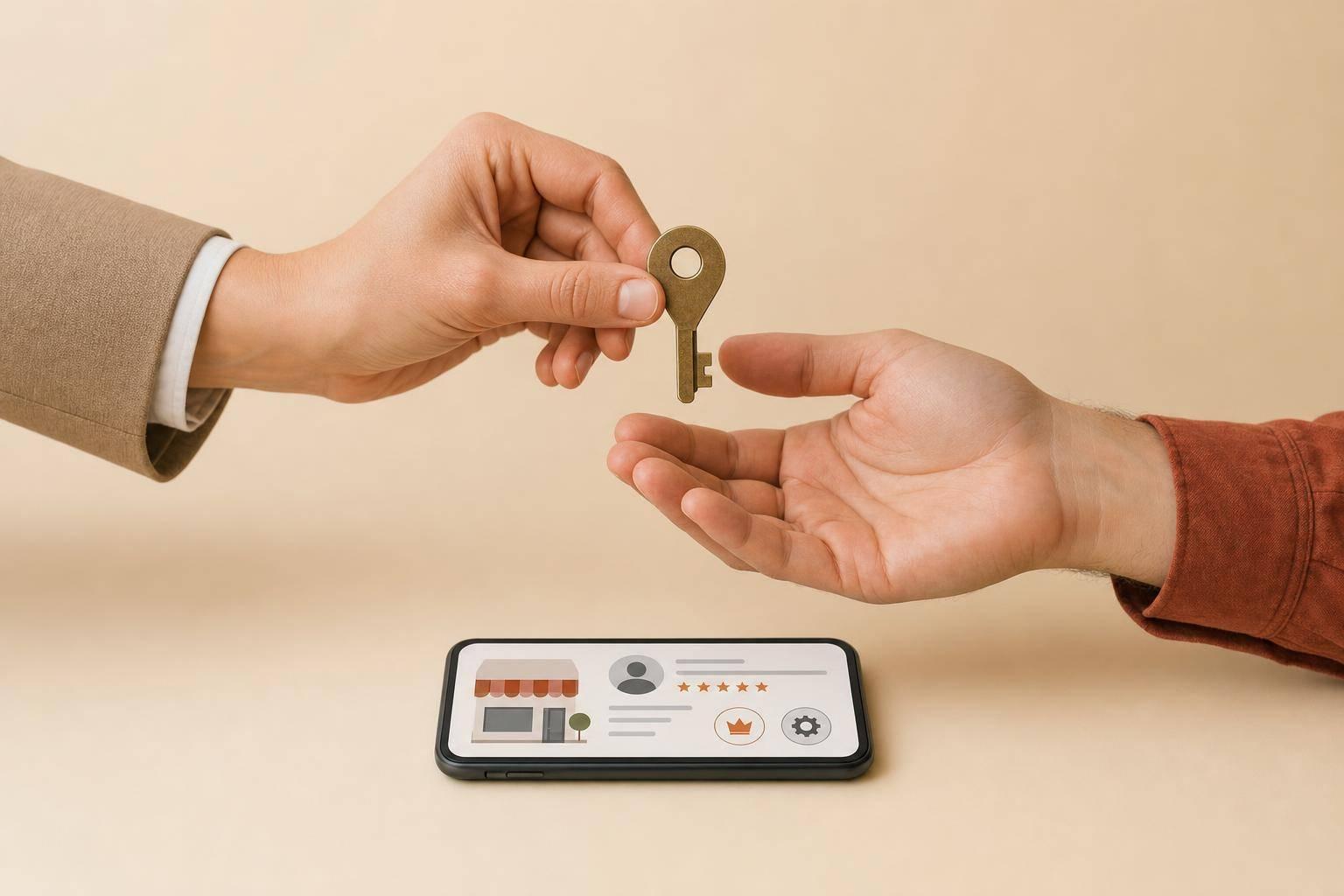
If your marketing agency set up your Google Business Profile, the account with Primary Owner access controls it - not the business name on the listing.
Here’s the short answer:
Before anything else, I’d check Business Profile settings → People and access and confirm:
If the wrong account controls the profile, the fix is usually simple:
Here’s the quick breakdown:
| Role | What it means |
|---|---|
| Primary Owner | Top control, including ownership transfer |
| Owner | Can edit, add/remove users, and delete the profile |
| Manager | Can handle daily updates, but cannot control users or ownership |
The main point is simple: your business should keep Primary Owner access on a company-controlled email, and your agency should usually stay at Manager level. Everything in the article supports that one rule.
Inside Google Business Profile, control comes from account roles, not legal business ownership: Primary Owner, Owner, and Manager [1][3][8]. That detail matters a lot. If an agency set up the profile, these roles decide who can run it.
The Primary Owner has the highest level of control. Only one account can have this role at a time, and only the Primary Owner can transfer primary ownership to someone else [1][3][8]. So if an agency account is listed there, the agency holds that power - not your business.
Owners can do a lot too, but they can't control primary ownership.
An Owner has full control over the profile. They can add or remove other users, edit all business details, and delete the profile [1][8]. A business can also have more than one Owner, which makes this role a smart backup [1][3][8].
A Manager handles day-to-day work. Managers can edit business info, reply to reviews, create posts, and add photos [1][8]. But they can't add or remove users, and they can't delete the profile.
| Capability | Primary Owner | Owner | Manager |
|---|---|---|---|
| Edit business info, posts, and photos | Yes | Yes | Yes |
| Respond to reviews and Q&A | Yes | Yes | Yes |
| Add or remove other users | Yes | Yes | No |
| Delete the Business Profile | Yes | Yes | No |
| Transfer Primary Ownership | Yes | No | No |
Google also puts a 7-day wait on new owners and managers before they can delete the profile or transfer primary ownership [1][3][5]. In plain English, a handoff can stall for a week even after access changes.
To check your access, open your Business Profile on Google Search or Maps, click the three-dot More menu, go to Business Profile settings, and open People and access [1][3]. You'll see every account with access and the role tied to each one.
That screen tells you who actually holds control. If your account is not listed as Primary Owner or Owner, you don't control the profile. And if you spot an account you don't recognize, Google will often show a masked email address, which can help you figure out whether it belongs to a past agency or former employee [10].
Next, check which account currently holds those roles.
If your agency created the listing and kept Primary Owner access, then the agency controls the profile inside Google Business Profile [1][3].
One of the most common slipups is simple: the agency builds the profile under its own Google account, then adds the business as a Manager instead of an Owner. On paper, that can look fine at first. The business can edit info, publish posts, and reply to reviews. But there's a catch.
As a Manager, the business can't add or remove users, and it can't delete the profile [1][3].
Some agencies also run listings through bulk tools or agency accounts. That may sound more official, but it doesn't change who owns the profile. If the business doesn't have Owner or Primary Owner access, it still doesn't control the listing.
The clean setup is simple: the business should hold Primary Owner access from day one.
A contract can help back up your position, but it does not override Google's access rules. If an agency won't transfer primary ownership, the business has to go through Google's ownership-request process. The current primary owner gets 3 days to respond before Google may allow the requester to move ahead [3][12].
Google's third-party policy adds another layer here. It says end customers must keep ownership or co-ownership of their profiles, and agencies must give clients a way to get full control back within 7 business days of a request [2].
So even if the paperwork is on your side, the account permissions still matter most inside the platform.
If the agency still has control, the next move is to check the actual account-level access.
The cleanest arrangement is straightforward: the business keeps Primary Owner access, and the agency stays at Manager level. That gives the business control where it counts, without getting in the agency's way.
Use a company-controlled email address for the primary owner. Best case, that's a Google Workspace email tied to the business domain, such as owner@yourbusiness.com [4][6].
For the agency, Manager access is usually enough to handle day-to-day work, including:
If your profile wasn't set up this way, the next thing to check is who currently has control.
How to Recover Your Google Business Profile from an Agency
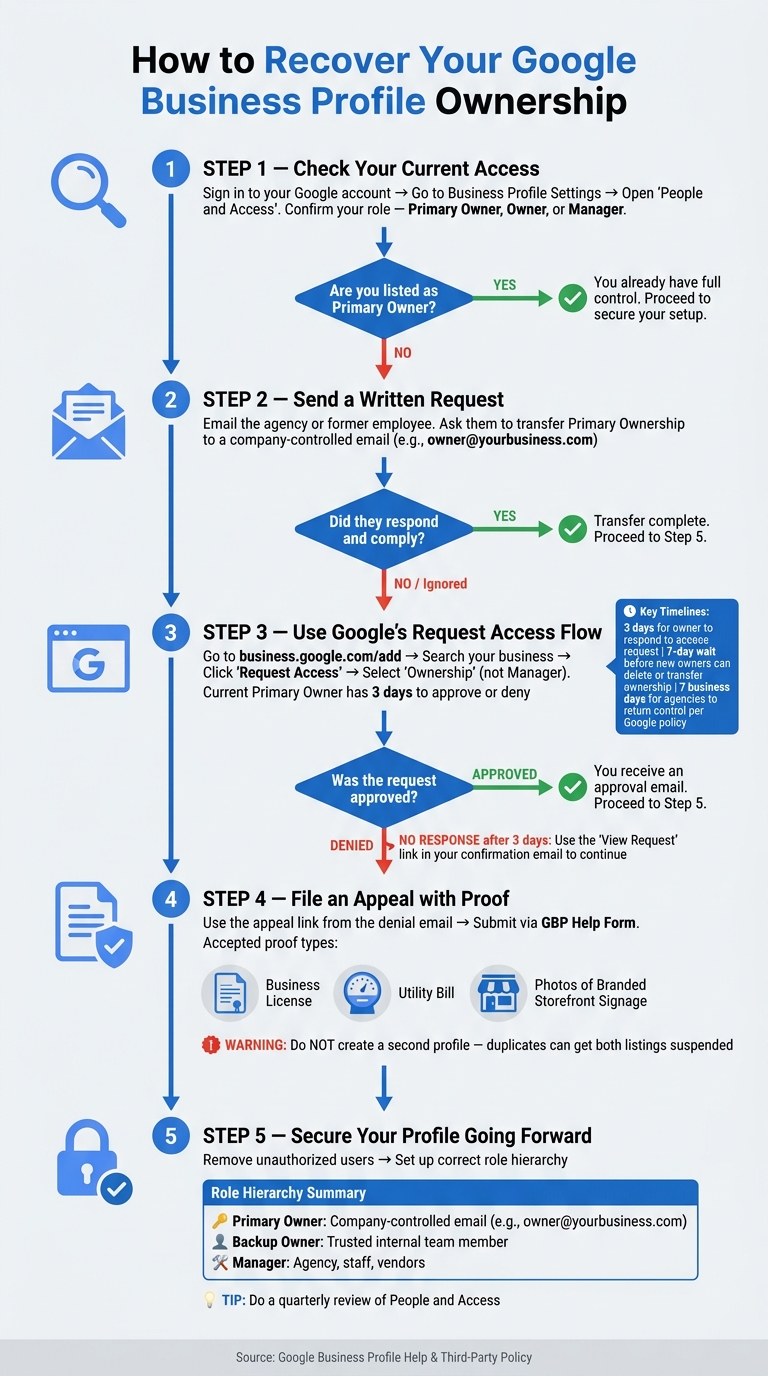
If an agency still controls the listing, the first job is to confirm who actually has access. Then you can start the recovery process.
Sign in to the Google account you think manages the profile. Then go to Business Profile settings > People and access.
The role shown there tells you what level of access you have:
If the profile doesn't appear in People and access, you're signed into the wrong account. Simple as that.
Start with a written request. Email the agency or former employee and ask them to transfer primary ownership to an email your company controls.
If that goes nowhere, head to business.google.com/add, search for your business, and click "Request Access." When Google asks what level of access you want, choose "Ownership" - not Manager. The current primary owner then gets 3 days to approve or deny the request [12].
Google also sends a confirmation email with a "View Request" link. Hold onto that email. You may need it later.
If the request is denied, use the appeal link and send proof through the GBP Help Form. That proof can include a business license, utility bill, and photos of permanent branded signage [12][13].
One thing you should not do: create a second profile. Google may flag it as a duplicate and suspend both listings [11][13].
What happens next depends on whether the person controlling the profile cooperates.
If the agency ignores you or refuses to hand it over, use the request access flow. And if they refuse to transfer access or try to charge you to release it, that goes against Google's third-party policy [2]. In that case, you can report them through Google's official third-party complaint form.
If a former employee set up the profile, pay attention to the masked email Google shows during the request process, such as k***@gmail.com [10]. That small clue can help you figure out who still has control.
If you've lost the original login, submit the request from a domain-based email already tied to your business's Google Search Console or Google Analytics account [4][11]. That can help support your claim.
Here’s how Google usually handles each outcome:
| Outcome | What happens | Your next step |
|---|---|---|
| Approved | You get an approval email and gain access | Check People and access and remove unauthorized users |
| Denied | You get a rejection email | Use the appeal link in the email and submit your proof documents [12][13] |
| No response | The request may lapse after 3 days | Use the View Request link in the confirmation email to continue the process [12] |
Once you regain access, set up your account so this doesn’t happen again.
Your business should keep the Primary Owner role on a company-controlled email, not a personal Gmail or an agency account [3][9][6]. It also helps to keep at least one trusted internal team member as a backup Owner. Agencies, staff, and vendors should stay at Manager level [1][6][8].
For multi-location brands, the same setup still applies, but access should be organized by location. Use Location Groups to manage access across multiple locations [3][5]. That way, an agency can work on a specific group of listings without needing separate invites for each one. It also cuts down the risk if one account gets compromised.
Most ownership problems come from the same three issues: an agency still has access after the contract ends, a former employee was never removed, or nobody reviewed the profile for a long time. A quarterly check of People and access can catch all three [3][9][7].
When an employee leaves or a vendor contract ends, remove access right away. If you're changing agencies, check People and access first and make sure your business still holds the Primary Owner role. It’s a small step, but it can save you from a messy handoff where the new agency is ready to start and the old one still controls the listing.
Google Business Profile control comes down to account roles. The business keeps the Primary Owner role on a company-controlled email, one trusted internal person keeps a backup Owner role, and everyone else - agencies, staff, and vendors - stays at Manager level.
Before any contract change or staff turnover, do one last access check. Check your access now, before a contract ends or a login gets lost.
Yes - if you’re an owner. If the agency is the primary owner, any required transfer needs to happen first.
In Google Business Profile, go to Business Profile settings > People and access, select the agency user, and choose Remove person.
A couple of limits matter here:
Google accepts proof that shows your legitimate connection to the business. Verification can happen by postcard, phone, email, or video. But if you’re claiming a profile from an unresponsive or unauthorized party, Google may ask for documents.
Accepted proof can include articles of incorporation, business licenses, tax filings, lease agreements, utility bills, or business purchase contracts. The key detail is simple: the business name and address need to match the profile exactly.
Don’t wait around or set up a new listing. Start Google’s ownership request through “Own this business?” or “Claim this business?”
If the current owner replies within Google’s time window, Google can transfer ownership. If they don’t reply, Google may give you a claim or verification option. You can also appeal through Google Support if you have proof that you’re allowed to manage the profile.
If an agency refuses to help, go through Google Support instead of trying to get access through old logins. That route is usually cleaner and puts the decision in Google’s hands.
Discover strategies to elevate your business.