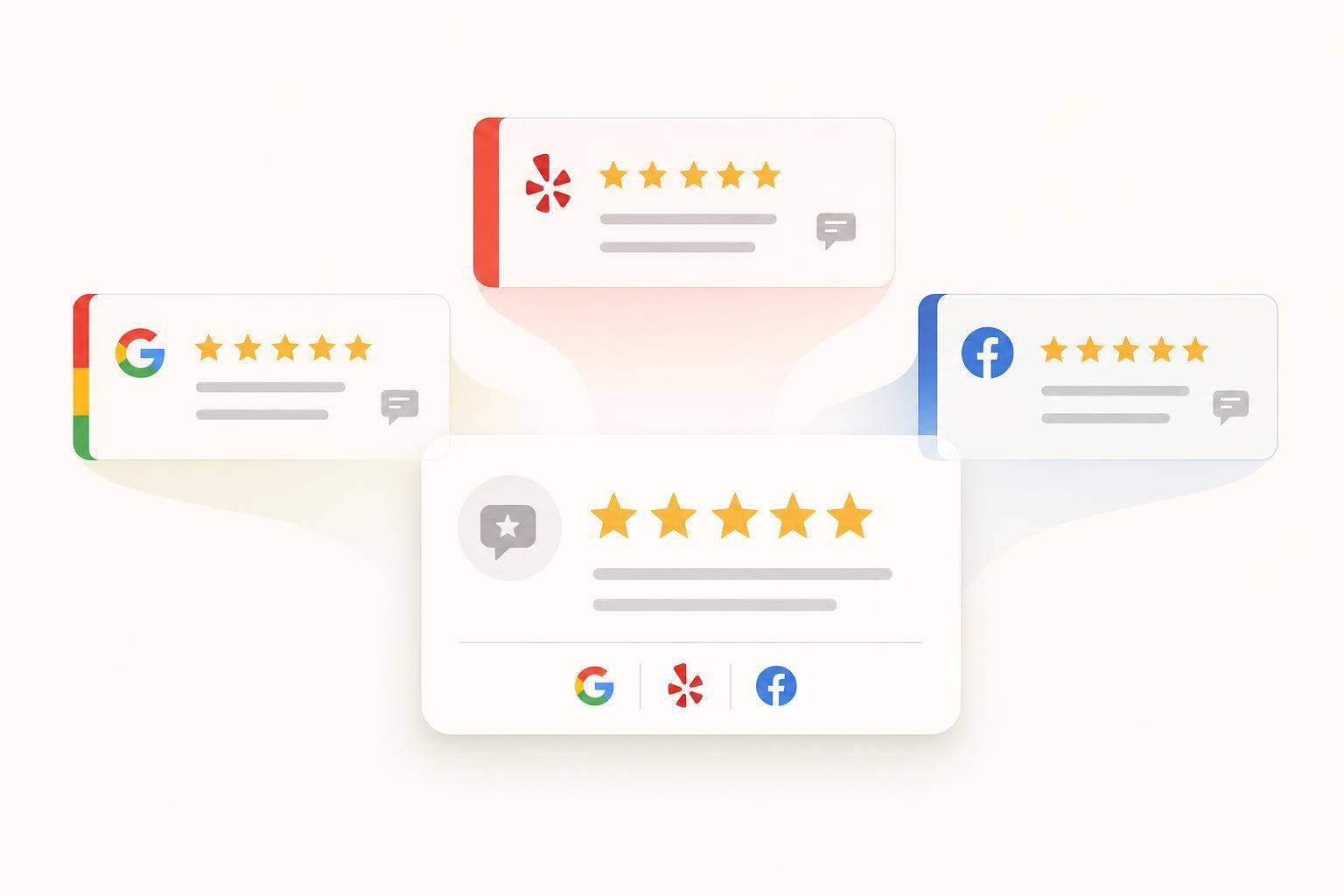
If your reviews are split across Google, Yelp, and Facebook, I’d show them in one widget on your site. That keeps people on your pages, gives them one clear view of your rating, and cuts the chance that they leave to check another platform. Since 97% of people read online reviews before picking a local business, this setup can help more visitors move toward a call, form fill, or booking.
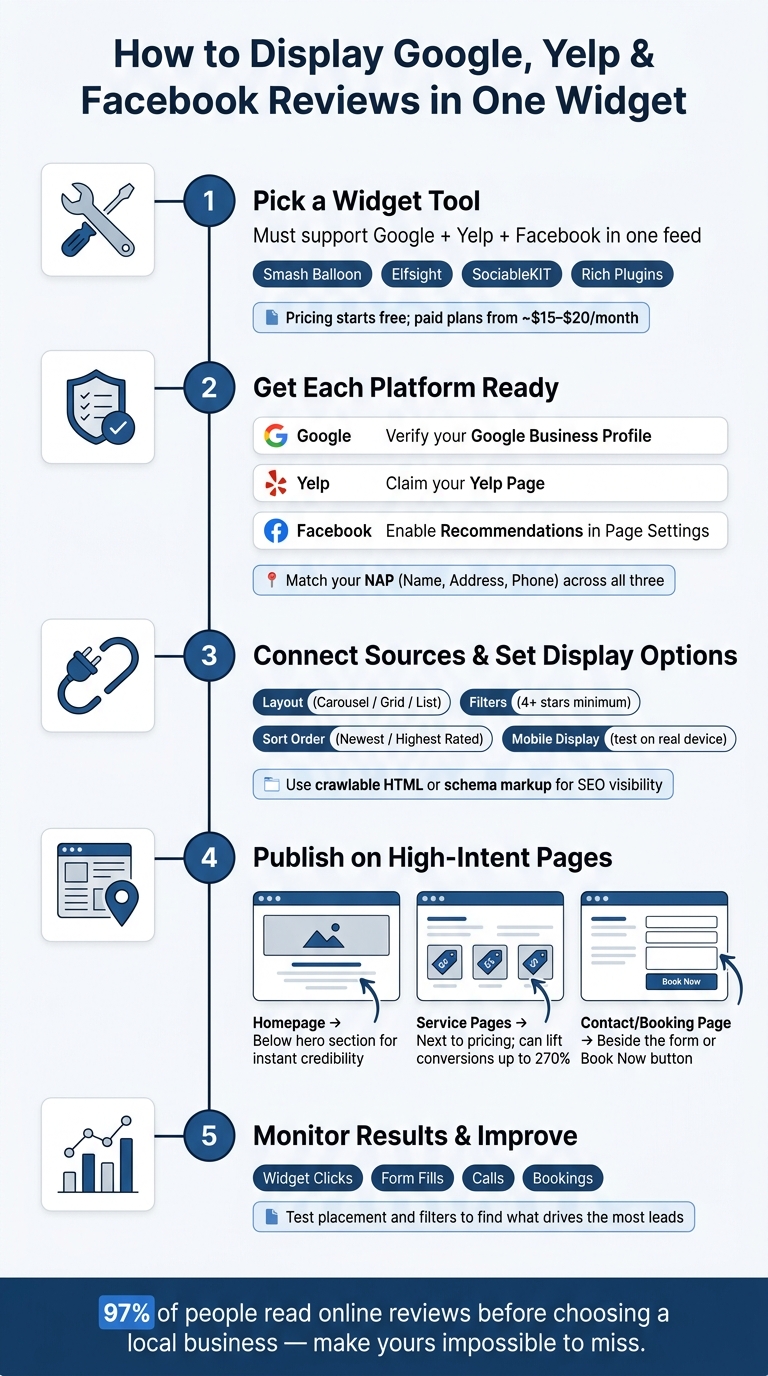
Here’s the short version:
The main thing I’d look for in a tool is simple: direct platform connections, auto-sync, moderation, mobile support, and search-friendly output like HTML or schema markup. Pricing also matters. Some tools start free, while paid plans often begin around $15 to $20/month.
How to Add Google, Yelp & Facebook Reviews to One Website Widget
| Tool | Best Fit | Supports Google, Yelp, Facebook | Setup Type | Starting Price |
|---|---|---|---|---|
| Smash Balloon | WordPress sites | Yes | Plugin | Free; paid for some features |
| Elfsight | Almost any website | Yes | Embed code | Free tier; paid from about $15/month |
| SociableKIT | Multi-platform sites | Yes | Embed code | Free tier; paid from $20/month |
| Rich Plugins | WordPress users who want review sources in one plugin | Yes | Plugin | Free; paid plans for more sync options |
I’d keep the setup simple: choose one tool, connect the three sources, publish the widget on one high-intent page, and watch what happens. From there, I’d test placement and filters to see which version brings in more leads.
Not every review widget works with Google, Yelp, and Facebook in a single feed. So before you pick anything, check that support first. Then compare the tools that cover all three and fit the way your site is built.
Start with the way the widget pulls reviews. Tools that use official integrations or direct platform connections tend to be more reliable and safer than scraping [4].
From there, look at the features that will affect day-to-day use:
There are three main types here, and each fits a different setup.
WordPress plugins like Smash Balloon plug straight into your WordPress dashboard and can show reviews as crawlable HTML text [1]. If your site runs on WordPress, this route often feels the most direct.
Hosted all-in-one widgets like Elfsight and SociableKIT work on almost any website through a JavaScript embed code. They pull reviews from more than one source, which makes them a solid pick if you want platform flexibility [7][2].
Review aggregator tools like Rated Stores are built more around a single trust score [3]. That makes sense when your main goal isn't showing each platform separately, but pulling everything into one overall rating.
| Feature | Smash Balloon | Elfsight | SociableKIT | Rich Plugins |
|---|---|---|---|---|
| Tool type | WordPress plugin | Hosted widget | Hosted widget | WordPress plugin |
| Supported sources | 8+ platforms | 60+ platforms | 10+ platforms | Google, Yelp, Facebook, TripAdvisor |
| USD pricing | Free for Google/Yelp; Pro for Facebook and combined feeds | Free tier; premium plans from about $15/month | Free forever; premium plans from $20/month | Free version; paid plans unlock unlimited syncing |
| Live syncing | Scheduled auto-refresh | About every 72 hours | Auto-sync on premium | Refreshes every 3 days |
| Moderation | Star and keyword filters | Star and keyword filters | Manual and AI tools | Manual hide/show |
| Search visibility | Crawlable HTML text | JSON-LD | JSON-LD | JSON-LD |
| Mobile-friendly | Yes | Yes | Yes | Yes |
| Installation | WordPress plugin | Embed code | Embed code | WordPress plugin |
Once you've picked a tool, the next step is getting each review source ready so the widget can connect without issues.
Before you connect the widget, make sure each source is set up the right way: a verified Google Business Profile, a claimed Yelp page, and a Facebook Page with Recommendations turned on. That gives the widget what it needs to pull reviews from all three places into one feed. If these profiles aren't ready first, connection issues are much more likely.
| Platform | Readiness Requirement | Connection Data Needed |
|---|---|---|
| Profile must be verified | Google Business Profile name, Maps URL, or Place ID | |
| Yelp | Page must be claimed | Yelp Page URL or Yelp API Key |
| Recommendations must be enabled | Page URL or Admin or Editor access |
Take a minute to audit your NAP (name, address, phone) across all three platforms. If those details don't match, they can weaken trust and local SEO[9].
For Facebook, go to Page settings > Templates and Tabs, switch on the Reviews tab, then check how the page looks in public view while signed out.
Next, gather the exact URLs and permissions each platform needs.
Most tools connect with a public URL or ID, or through Facebook login authorization. For Google and Yelp, you'll usually paste in your Google Place ID or Yelp page URL. For Facebook, sign in and approve access through an account that has Admin or Editor access on the Business Page.
If you need it, use the Google Place ID Finder. For Yelp, copy the ID from the URL after yelp.com/biz/. Review widgets are read-only, so moderation settings only affect what shows up on your site.
After that, connect each source and choose the display options.
Once your profiles are verified and your URLs are ready, connect each source one at a time. Most tools use pretty much the same flow: create an account or install the plugin, then add each review source one by one.
Start with Google. Search for your business name or location inside the tool. If it doesn't show up, paste in the Google Maps URL instead. Then add Yelp by entering your Yelp Business Profile URL or signing in through the platform. After that, connect Facebook by logging into the account that manages your Business Page, approving the required permissions, and choosing the right location.
After all three are connected, move on to layout and filtering.
Pick a layout, remove low-value reviews, and style the widget so it fits your site.
Layout changes how fast people can scan what they're seeing. A carousel is a good fit for homepages where space is limited and you want a neat, swipeable row of reviews. A grid or list makes more sense on a reviews page, where visitors are taking time to compare and read. The best choice depends on what that page is supposed to do.
| Setting | Common Options | Why It Matters |
|---|---|---|
| Layout | Carousel, Grid, List, Masonry, Badge | Controls how much space the widget takes up |
| Filters | Minimum star rating (4+), hide empty reviews | Keeps the feed relevant and high-quality |
| Sorting | Newest first, Random, Highest rated | Shapes what visitors see first |
| Styling | Light/Dark mode, accent colors, font selection | Makes the widget look native to your site |
| Review Elements | Author name, photo, date, source icon | Controls how much detail each review shows |
One detail matters here: don't set the minimum filter to 5 stars only. Reviews with four stars and up tend to look more believable than a wall of perfect scores, and they line up better with Google's terms of service [8][1].
When you're done, the tool will generate a short JavaScript snippet or a WordPress shortcode/block. You can use HTML, a shortcode, or a block to place the widget on the page.
If you have the option, use crawlable HTML. Search engines can read HTML review text more easily than content inside an iframe.
Before publishing, preview the widget on both desktop and mobile.
Before you go live, use the tool's preview to make sure reviews from all three platforms are showing up, not just Google. Then open the live page on an actual phone. A resized desktop browser can miss things that show up on mobile.
Check these points before launch:
Once the widget is live, where you put it matters. A good widget won't do much if people miss it and leave the page.
Start with the pages that matter most: the homepage, service pages, and the contact or booking page.
On the homepage, add a short carousel or compact grid right below the hero section. That puts social proof in front of visitors early, before they start clicking around.
On service pages, place the widget next to the service description or pricing. That's often the moment when people pause, compare, and second-guess. Seeing reviews there can ease doubts before they turn into drop-off.
On the contact or booking page, place the widget beside the form or Book Now button. This helps calm last-minute hesitation right when someone is about to take action.
Use those priorities to match placement with each page's job.
Each page plays a different role in the decision process. So the best placement depends on what you want that page to do.
| Placement | Primary Goal | Advantage |
|---|---|---|
| Homepage | Instant credibility | Builds broad trust right below the hero section |
| Service Page | Relevance & conversion | Addresses specific doubts; can lift conversions by up to 270% [1] |
| Contact/Booking Page | Reduce final hesitation | Reassures visitors at the point of action |
After the widget is live, track what it changes. Don't stop at views alone. Look at widget clicks, form fills, calls, and bookings in your analytics dashboard.
That gives you a clearer picture of which page is bringing in the most leads.
Start with one high-intent page, watch the results, and move the widget to the spot that brings in the most leads.
Yes - you can combine reviews from Google, Yelp, and Facebook into one widget on any website, not just WordPress.
Most third-party tools, including EveryWidget, Elfsight, Famewall, and EmbedSocial, give you a simple embed code that you can paste into a website builder, CMS, or custom HTML site.
That means you can pull reviews from different platforms into one feed and show them in a single widget. You can also customize the widget so it fits your brand’s look and feel.
It can if it’s not set up the right way, but modern review widgets are usually built to keep the hit as low as possible. Slowdowns tend to come from heavy scripts, too many external API calls, or bulky add-ons like auto-playing carousels.
To keep your site fast, pick a widget with lazy loading, server-side caching, and lightweight, non-blocking code. Using one optimized aggregator instead of several separate plugins can also cut down on conflicts and help protect page speed.
Combined review widgets usually update on their own through background syncing, but how often they refresh depends on the provider.
Some pull in new reviews automatically. Others rely on a set sync schedule or give you a manual refresh option, like updating every three days on certain platforms.
That also means new reviews may not show up right away. In many cases, the delay comes down to caching or the provider’s update schedule.
Discover strategies to elevate your business.