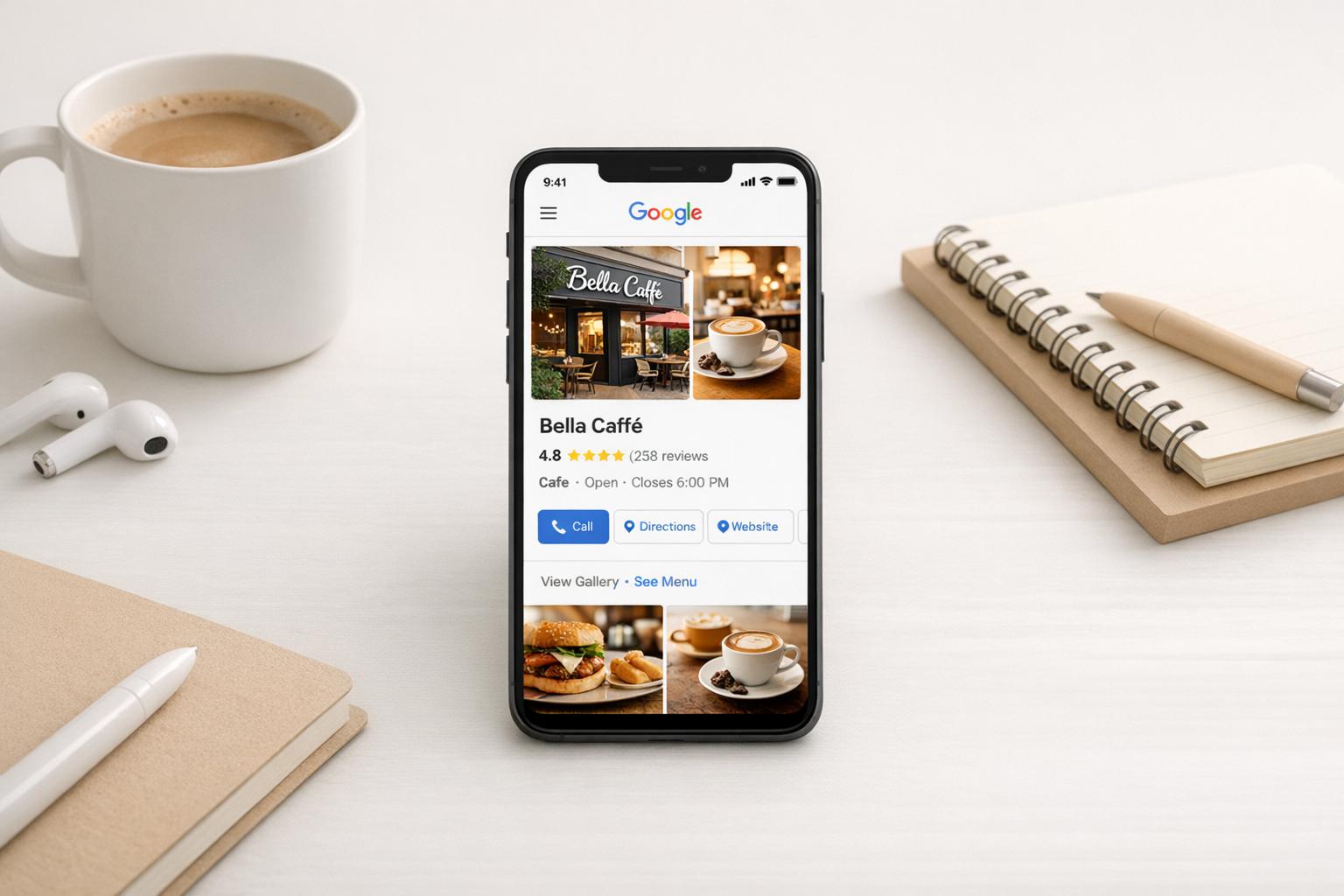
Your Google Business Profile visuals now directly impact local search rankings. In 2026, Google's AI evaluates photos and videos for quality, relevance, and engagement. Businesses with optimized visuals gain 7x more clicks and are perceived as 2.7x more trustworthy. Here's how to improve your profile:
Visual content isn't just about aesthetics - it builds trust, improves engagement, and boosts your ranking in local search results.
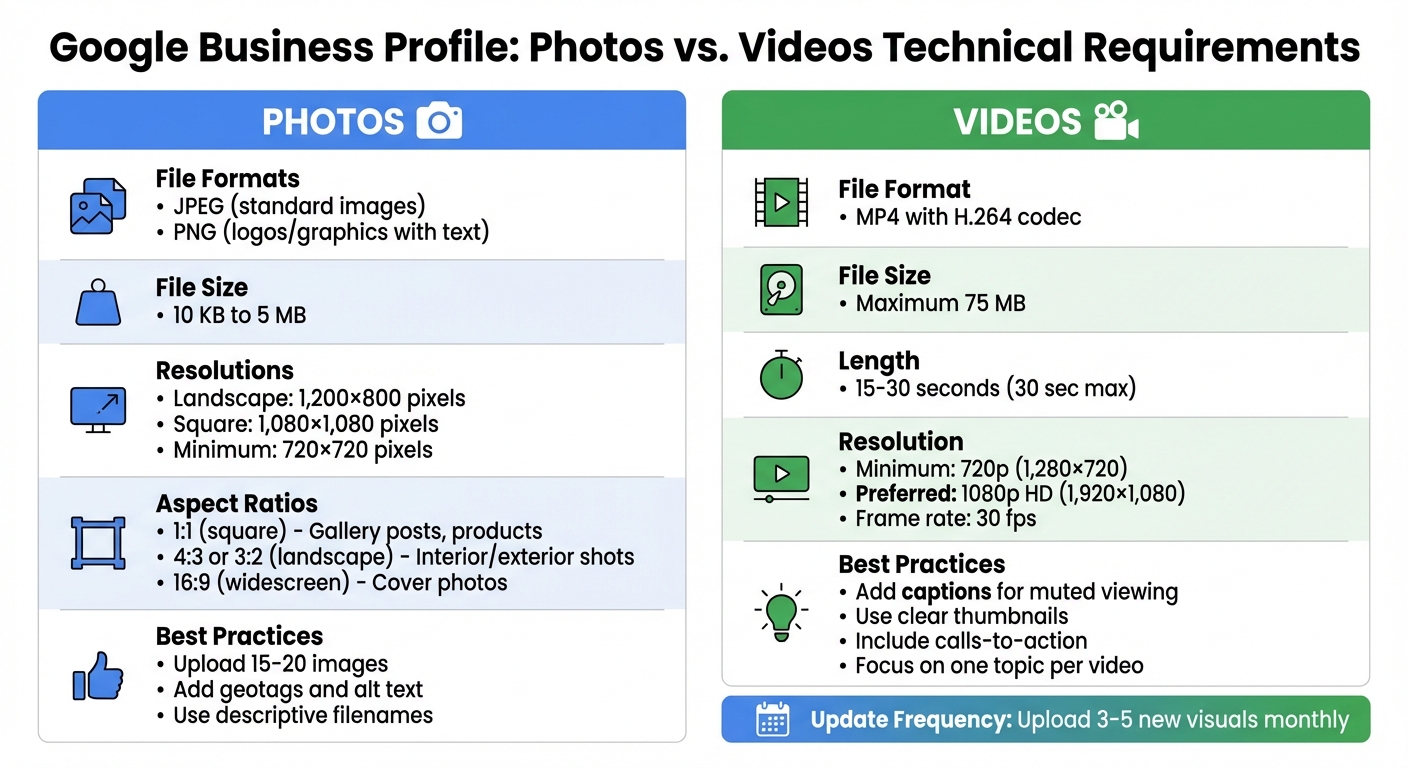
Google Business Profile Photo and Video Technical Requirements 2026
When it comes to uploading your photos and videos to your Google Business Profile, following Google's technical guidelines is key. Meeting these specifications ensures your visuals display properly and upload without a hitch.
Google Business Profile supports JPEG and PNG for photos, while MP4 is the go-to format for videos. Use JPEG for standard images and PNG for logos or graphics that include text. For videos, stick to MP4 with an H.264 codec to ensure compatibility across devices.
File size is another important factor. Photos should fall between 10 KB and 5 MB. Videos, on the other hand, must be 75 MB or smaller and no longer than 30 seconds. Files exceeding these limits may fail to upload or appear poorly on mobile devices. If your files are too large, compress them before uploading to avoid these issues.
Once you’ve handled the file type and size, focus on resolution and aspect ratios for the best visual experience.
Google recommends specific resolutions for different types of images. While older guidelines suggest a minimum of 720×720 pixels, more recent recommendations for 2026 optimization include:
Using higher resolutions ensures your visuals look crisp on modern devices and work well with AI-driven formats.
Aspect ratios are equally important for proper display. Here’s a quick guide:
These ratios are optimized for mobile-first rendering, which prevents awkward cropping and ensures your visuals fit seamlessly on screens of all sizes.
For videos, aim for a length of 15 to 30 seconds. Shorter clips tend to perform better on mobile, making them ideal for quick store tours, service demonstrations, or customer testimonials.
To ensure high-quality playback, upload videos in HD resolution. At a minimum, use 720p (1,280×720 pixels), but 1080p (1,920×1,080 pixels) at 30 fps is preferred for smooth, professional-looking results. Pay attention to lighting and audio quality - clear visuals and sound make a big difference. Poor-quality footage, such as blurry or overly compressed videos, can hurt your profile’s visibility, as Google’s AI tends to prioritize higher-quality content for visual search results.

Start by logging into your Google Business Profile dashboard. Head to the "Photos" tab, then select "Upload photo" to add your visuals. For your logo, use a square PNG image (1,200×1,200 pixels) with a transparent background. When choosing a cover photo, go for a landscape image sized at 1,200×800 pixels that represents what customers can expect - like your storefront, a signature dish, or your main service area.
To make your profile stand out, upload 15–20 high-quality photos showcasing different aspects of your business. Include shots of exteriors, interiors, products, and even staff interacting with customers. Make sure to use filenames that emphasize your location, such as "main-street-sf.jpg," to boost local relevance. Stick to genuine, unedited images to maintain authenticity.
To take it a step further, enhance your photos' local impact by adding geotags and alt text.
Geotags help verify your physical location and boost your visibility in local searches. To embed geotags, capture images on-site with your phone's location services turned on. Alternatively, tools like Adobe Lightroom allow you to manually add latitude and longitude details that match your business address. Using descriptive filenames like "main-street-storefront-sf-bay.jpg" can further reinforce your local presence.
Alt text is equally important. To add it, click the three-dot menu for each photo, select "Edit," and write a natural description of 100–125 characters. For example: "Spacious dental office reception in downtown SF with modern chairs and welcoming staff" or "Team installing AC unit in Bay Area home." This improves accessibility for screen readers and helps Google better understand your photo content - especially as visual and voice searches now make up about 35% of local queries.
These small details can significantly improve your profile's searchability and accessibility.
Before uploading, run your photos through AI-powered tools to ensure they meet quality standards. Tools like Google Photos AI editor, Adobe Sensei, or Canva Magic Studio can detect issues like blurriness, poor lighting, or low resolution. They can also suggest simple fixes, such as adjusting contrast for indoor shots. To keep your files under 5 MB for faster mobile loading, use free compression tools like ImageOptim or TinyPNG.
AI tools can also flag photos that don’t align with Google's 2026 authenticity guidelines - for example, overly filtered or heavily edited images - and suggest replacements. Some platforms even offer performance tracking, helping you identify which types of photos (e.g., exterior shots versus product close-ups) generate the most engagement.
For businesses looking for professional-quality visuals in a hurry, services like Humble Help can deliver optimized, eye-catching images within 48 hours. They combine AI insights with expert design to give your photos the polish they need to stand out.
Adding optimized videos to your Google Business Profile can amplify customer engagement and align with Google's AI preferences, all while enhancing your local SEO strategy.
Keep your videos short - ideally between 15 and 30 seconds. This length ensures they're easy to watch, especially on mobile devices. Focus on one topic per video. For example, you could showcase a signature dish, demonstrate a service, give a quick tour of your space, or feature a happy customer sharing their experience.
Use your smartphone to record in 1080p resolution, and enable location services if applicable. Make the most of natural light by positioning your subject near windows, and use a clip-on microphone for better sound quality. Before filming, double-check your setup to avoid issues with lighting or audio.
Here are five video ideas to consider:
Structure each video with three key parts: start with a quick hook to grab attention, focus on the main content in the middle, and finish with a clear call-to-action like "Call us today" or "Book online."
Captions are essential since many people watch videos on mute. Use simple, conversational language that reflects how your customers speak. For example: "Looking for same-day plumbing in Denver?" Make sure to mention your main service and location early in the captions for clarity.
For thumbnails, pick a bright, clear frame that highlights either a human face with visible emotion or your main subject - like a freshly prepared dish, a clean workspace, or a completed repair. Avoid blurry or dark images. If possible, add a short, high-contrast phrase like "Before/After Kitchen Remodel" or "Same-Day AC Repair" to make the thumbnail stand out.
Your call-to-action should appear in three places:
For service businesses, calls-to-action like "Schedule your appointment online today" or "Text us for same-day service" work well. Restaurants and retailers might use phrases like "Order online for pickup" or "Visit us at [street name]."
Once your videos are ready, follow these steps to upload them to your profile.
Log into your Google Business Profile, click "Add photo", then choose "Video." Upload your MP4 file (be sure it meets Google's technical requirements) and add a descriptive title and description that highlights your service and location. For instance: "30-Second Tour of Our Oakland Auto Shop – Parking & Waiting Area." If you're managing multiple locations, double-check that you're uploading to the correct one.
Prioritize your most important videos - like a tour or service demo - so they appear first in your media gallery. Google's AI values authentic, real-life footage of your team and space over overly polished or stock-like content. Keep your profile fresh by uploading new videos regularly, whether monthly or quarterly, to show both Google and potential customers that your business is active and up-to-date.
Once your visuals are technically polished, incorporating a thoughtful content strategy can turn casual viewers into loyal customers. Google's AI now evaluates the photos and videos you upload to better understand your services and location, which can directly influence your local search visibility.[1][6]
The right visuals can answer key customer questions and complement the technical standards covered earlier. Here are the types of content that can make your images both appealing and functional:
Realistic visuals that include recognizable brand elements, such as logos or uniforms in natural settings, send strong trust signals to Google's AI and potential customers.[1][6][7]
Customer-shared visuals carry more weight than those uploaded by businesses because they serve as unbiased proof of quality.[1][3] Encourage happy customers to share their experiences by asking them directly - whether at checkout or through follow-up communications. QR codes on receipts or in-store signage can make the process easier, directing customers to upload photos or videos to your Google listing.[1]
Identify key moments in the customer journey that naturally invite photo opportunities. For instance, a plated dish at a restaurant, a mirror reveal at a salon, or a final walkthrough after a home service job can all prompt customers to capture and share their experiences. You can even organize photo contests where participants have a chance to win a gift card or service credit for sharing their photos. Just ensure the focus remains on participation rather than influencing review ratings, so you stay within Google's guidelines.[1][2]
Regular updates to your visual content show both Google and potential customers that your business is active and relevant. Aim to upload 3–5 new visuals every month, especially when introducing new services, seasonal changes, or promotions.[1] For even greater engagement, consider adding at least one new photo or video each week, paired with a Google Business Profile post highlighting offers, events, or updates.[2]
Don’t forget to remove outdated visuals, such as those featuring old branding or discontinued items, to ensure your gallery accurately reflects your current offerings. If you manage multiple locations or have high customer traffic, consider uploading weekly batches for each location to maintain a fresh and engaging presence.[2][5] This consistent effort not only keeps customers interested but also provides valuable data for tracking performance over time.
For customized strategies to elevate your local visibility, check out Humble Help. Their expert guidance and practical tools can help you optimize your Google Business Profile visuals well into the future.
To keep your visual strategy effective, make it a habit to check your Profile Performance or Insights every month. Pay attention to metrics like photo views, video views, website clicks, calls, direction requests, and booking clicks [2][3]. Logging these numbers in a spreadsheet can help you connect changes in visuals to leads and revenue [2][6].
For better tracking, use UTM-tagged URLs in your website and booking links. This will allow you to monitor visits, form submissions, and bookings through Google Analytics [2]. Keep an eye on these metrics over a 4–6 week period to see how new visuals impact lead generation and revenue [2][6].
Start by recording baseline metrics from your account’s Performance tab [2][3]. Then, compare these numbers before and after uploading new visuals. Keep track of any changes in your spreadsheet, noting what content was added or updated. If photo views stay flat for 30–90 days despite regular updates, it might be time to rethink your visuals or align them better with what customers are searching for [2][6].
If you’re running a U.S.-based service business with multiple locations or high customer traffic, consider working with a partner like Humble Help. They can simplify tracking and content planning, ensuring every location has fresh and relevant visuals without overloading your team.
Once you’ve got a handle on your metrics, make sure your visual content stays accurate and polished.
Keeping your visuals authentic is crucial for maintaining strong local SEO. Regularly review the "By Customer" section in your Photos tab to spot images that might misrepresent your business - like photos with outdated logos, old pricing in USD, or unsafe conditions that no longer apply [4]. Check your listing on Google Maps to ensure all visuals reflect your current services and branding.
If you find problematic content, you can report it by clicking the flag/report icon on the photo or video in Google Search or Maps. Select the reason for reporting, such as "Not about this place", "Offensive or sexually explicit", "Violent or dangerous", or "Spam" [4]. If the content isn’t removed after a reasonable time, document the issue with URLs and screenshots, then contact Google Business Profile support through the Help section of your dashboard. Performing a monthly content audit can help you stay on top of outdated or low-quality media, keeping your visual gallery aligned with your brand.
As you manage and track your visuals, it’s also important to prepare for the shift toward AI-powered visual search. This technology will allow users and AI assistants to search using images or videos, with Google’s systems analyzing visuals like your storefront, branding, or services to match them with relevant local businesses [1][6]. By 2026, Google’s AI will evaluate images and videos for factors like relevance, authenticity, and engagement, and these will directly influence local rankings alongside reviews and proximity [1][6].
To get ready, focus on uploading high-quality visuals that showcase your real location, staff, and services - steering clear of generic stock photos. Use descriptive filenames, captions, and alt text that include common search terms, like "emergency plumber in San Jose", to improve your local rankings [1][6]. Keep your visuals consistent across your website and social media profiles so AI can easily connect all signals to your brand. Review Google’s policy updates quarterly and update your visuals monthly to reflect seasonal changes or new offerings [1][6].
For businesses looking to stay ahead, agencies like Humble Help can be a valuable resource. They can assist with creating detailed shot lists, optimizing metadata, and analyzing performance data to ensure your visuals remain competitive as AI-powered search evolves.
Photos and videos play a crucial role in local search rankings. By 2026, authentic visuals showcasing your storefront, team, services, and customer experiences will not only build trust but also encourage clicks, calls, and bookings. As visual search continues to grow, detailed and descriptive images can help your business appear in searches like "show me a cozy coffee shop near me" or even when users search by photo. Businesses that think of visuals as structured data for AI - rather than just marketing material - will be in a stronger position to attract high-intent local traffic and turn curious searchers into loyal customers.
These insights pave the way for taking immediate, impactful action.
To make the most of your visuals, start with a quick audit: delete any blurry, poorly lit, or outdated photos that no longer represent your current space, menu, or branding. Dedicate 1–2 hours to capturing a fresh set of high-quality images that highlight your exterior, interior, key services, team, and customer interactions. Don’t forget to record a short, 20–60 second video tour in good lighting to give potential customers a feel for your business. When uploading to your Google Business Profile, use descriptive filenames and captions that reflect how your audience searches (e.g., "same-day water heater repair in San Jose, CA"). To maintain visibility, plan to update your profile monthly with 3–5 new photos and one video.
If you need help creating an efficient visual content strategy or staying on top of AI and visual search trends for 2026, Humble Help offers tailored support for small and local service-based businesses. Whether you need guidance, simple tools, or done-for-you services, they can help keep your visuals fresh and competitive. These steps align perfectly with the technical and strategic optimizations discussed earlier.
Geotags and alt text can make your business photos stand out in local searches by giving Google important details about their location and content. This increases the chances of your business showing up in local search results and on Google Maps.
Adding geotags ties your photos to a specific location, strengthening your connection to the area. Meanwhile, alt text provides a clear description of your images, which not only improves accessibility but also helps search engines grasp their context. Using both can enhance your visibility and draw in more local customers.
Using photos and videos shared by your customers on your Google Business Profile can add a personal touch and make your business feel more approachable. These kinds of visuals show genuine, real-life examples of your products or services, often connecting better with potential customers than polished, professional images.
This type of content also encourages more interaction with your profile. Increased engagement can help boost your visibility in search results, bringing in more clicks and inquiries. On top of that, it showcases real customer experiences, offering powerful social proof that strengthens trust in your brand.
You can monitor how your photos and videos are performing with Google Business Profile Insights. This feature gives you up-to-date data on views, clicks, and engagement, offering a clear picture of how people are interacting with your visuals.
By checking these insights consistently, you can uncover patterns and see which photos or videos are connecting most with your audience. Use this knowledge to fine-tune your content strategy and craft visuals that grab attention more effectively.
Discover strategies to elevate your business.